Listening to papers on a phone or tablet often means hearing citations, headers, footers, and tables aloud. Zotero for iOS now ships Read Aloud: like the desktop feature, it reads PDFs, EPUBs, and webpage snapshots in high-quality voices, automatically skips in-text citations, headers and footers, and tables, and can fall back to on-device system voices when offline.[1] Dan Stillman’s 5 October 2026 Zotero blog post announces the feature and states playback controls, sentence annotation, and voice tiers.[1] This piece follows that post on supported documents, playback and annotation, and voice tiers and quotas.[1]
What it reads—and what it skips
Read Aloud covers PDF, EPUB, and webpage-snapshot attachments.[1] It skips in-text citations, headers and footers, and tables so layout noise stays out of the audio.[1] You can start from a chosen spot, skip ahead by sentence or paragraph, and when you stop it remembers the exact position for later resume.[1] The post aligns these behaviours with desktop Read Aloud and the same Zotero Voices set.[1]
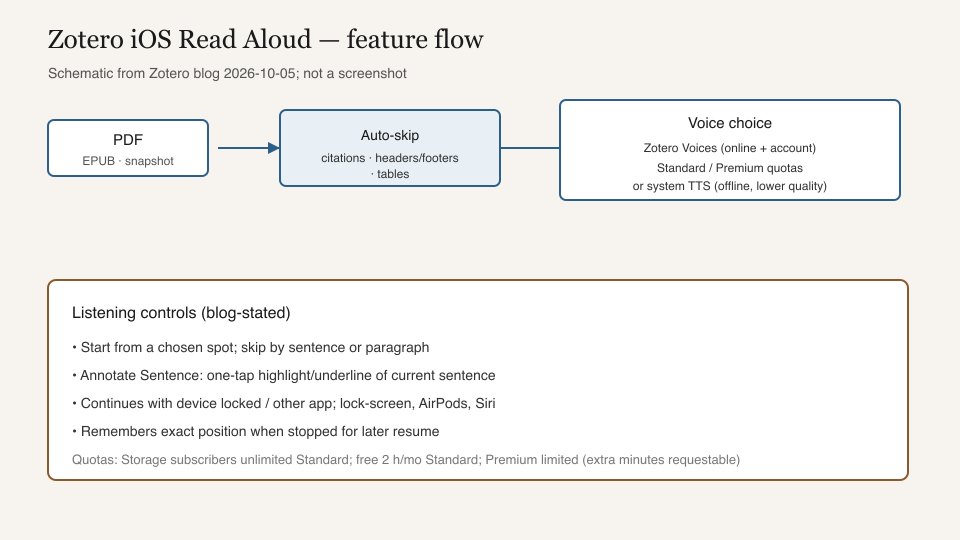
Figure: iOS Read Aloud flow (document types → auto-skip → voice choice → listening controls). Schematic from the official post, Zotero Blog[1]
Playback controls and sentence annotation
Playback continues if you lock the device or switch apps; lock-screen controls, AirPods buttons, and Siri can pause, resume, or skip by sentence.[1] Annotate Sentence highlights or underlines the sentence being read with one tap.[1] To restart from a chosen point, Zotero Team member dstillman wrote on 16 October 2026 that you must choose Read Aloud from the context menu—either after a long-press on whitespace or with text selected—rather than clicking the toolbar button again; the whitespace menu shows Read Aloud in the first visible options without tapping an arrow.[2] To change voice while listening: open bottom-bar settings (slider icon) → Switch → pick a voice; type, language, and region options appear from the available lists—language only when a language list applies, region only when more than one region is available—then select the voice.[3] Quotas and voice tiers follow the blog wording.[1]
Online Zotero Voices vs offline system speech
High-quality Zotero Voices need an internet connection and a Zotero account; for offline listening you can use system text-to-speech voices, at significantly lower quality.[1] There are two tiers: Standard voices are generated on Zotero servers—unlimited minutes for Zotero Storage subscribers and 2 hours/month for free accounts; Premium voices are processed by external providers, make fewer mistakes, sound more natural, support more languages and multilingual text, with up to about 2 hours/month for individual Storage subscribers (varying by voice) and a small trial quota for free and institutional accounts.[1] Extra Premium minutes can be requested for free for now; finer monthly allocations and purchase options are promised later.[1] Zotero for iOS is available from the App Store.[1] Choose by offline need first, then by whether the account includes Storage when picking Standard versus Premium online.[1]
For people already managing papers in Zotero, iOS Read Aloud—per the blog—covers which attachments play, what is skipped, sentence annotation while listening, and online versus offline voice trade-offs.[1] Quotas and voice tiers follow the blog and account status.[1]
References
-
Stillman, D. (2026-10-05). Read Aloud on iOS. Zotero Blog.
-
Stillman, D. / Zotero Team (2026-10-16). Now available: Read Aloud on iOS. Zotero Forums.
-
zotero-ios (commit affbf9d). ReadAloudControlsView.swift (+ ViewHandler, VoicePicker).